
Showing posts with label lightroom. Show all posts
Showing posts with label lightroom. Show all posts
Thursday, June 1, 2017

Tuesday, April 11, 2017
Lightroom Quicktip, save your editing as a preset
In Lightroom you can easily save your editing as a preset. For example you can do some split toning and save it as a preset and use it for another picture.
Open the image in Lightroom


Open the image in Lightroom

Do the editing

Now click on the + on the left site in the preset panel.

Choose with changes you want to save and give the preset a name.
Easy and simple!
Friday, March 24, 2017
How to go black and white in Lightroom
Learn how to go black and white in Lightroom.
And have you already discovered our Facebook page Humans of the Nordic Region?

Friday, March 17, 2017
Color management in Lightroom cc
Color management in Lightroom cc is easy when you follow this youtube movie.
And have you already discovered our Facebook page Humans of the Nordic Region?
Thursday, March 16, 2017
Create a sepia effect in Lightroom cc using Split Toning
Create a sepia effect in Lightroom cc using Split Toning is very easy. Just follow the steps in this short Youtube movie.

2017 © Hamperium.com
Monday, March 6, 2017
How to mirror an image in Lightroom
How to mirror an image in Lightroom. Just watch this short movie.
And have you already discovered our Facebook page Humans of the Nordic Region?
Monday, February 20, 2017
Straighten your image in Lightroom (video)
Straighten your image in Lightroom (video). Its very easy and simple. Just this watch this short video.
And have you already discovered our Facebook page Humans of the Nordic Region?
Friday, February 17, 2017
Before and after in Lightroom (video)
Before and after in Lightroom
Watch this movie to see you can see the before and after in Lightroom.
Don't forget to follow us on Facebook or 500px.
And have you already discovered our Facebook page Humans of the Nordic Region?
Watch this movie to see you can see the before and after in Lightroom.
Don't forget to follow us on Facebook or 500px.
And have you already discovered our Facebook page Humans of the Nordic Region?
Thursday, February 16, 2017
Lightroom Quicktip, Quick Conversion to B&W
The quickest way to convert an image to black and white is hitting the 'v' key
Go to the develop model pick an image.


And have you already discovered our Facebook page Humans of the Nordic Region?
Go to the develop model pick an image.

and hit the 'v' key.

Now you can do more editing.
By hitting the 'v' key it is in color again.
And have you already discovered our Facebook page Humans of the Nordic Region?
Lightroom Quicktip, brighten your image.
In this very short post we tell you a way to brighten your image.

To do this go to the develop model and increase the Shadows and Whites.

If its still to dark increase the the exposure. With some local adjustments like the radial filter we can brighten her face even more.

Try it out yourself.


To do this go to the develop model and increase the Shadows and Whites.

If its still to dark increase the the exposure. With some local adjustments like the radial filter we can brighten her face even more.

Try it out yourself.

And have you already discovered our Facebook page Humans of the Nordic Region?
Tuesday, January 31, 2017
Lightroom Quicktip, create an import preset
You can save your import in Lightroom as a preset


Fill in the location, keywords etc.... Now we gonna save it as a preset. You can find this option on the bottom of the screen.

Give it a name and you are done. So the next time you can use this preset to import your pictures
And have you already discovered our Facebook page Humans of the Nordic Region?
Monday, January 30, 2017
Lightroom Quicktip, Make a preset for your export
In Lightroom you have a possibility to make a preset of your export. So after you have done the editing you are ready to export the pictures.
So choose export
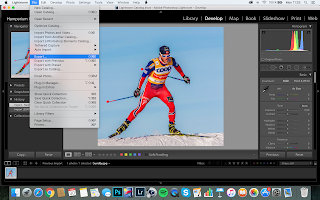
Fill in the location, name etc.


So choose export

Fill in the location, name etc.

Now click on the ' add' in the preset menu on the left side to the screen.
Fill in a name and save it

Now you can use this preset for other times you want to export with this settings.

And have you already discovered our Facebook page Humans of the Nordic Region?
Lightroom Quicktip: Turn the spotlight on
We start with this picture


If you want the attention on the man in the middle, you just have to turn a spot on him.
In Lightroom its easy using the radial filter

Invert the mask, feather it and increase the exposure and the spot is on.
Easy and simple

And have you already discovered our Facebook page Humans of the Nordic Region?
Sunday, January 29, 2017
Selective color in Lightroom
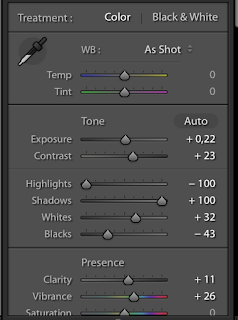
Selective color is maybe a not done but sometimes it gives a nice effect. So why not? One way to do it is using a Black and white adjustment layer in Photoshop and using the mask. But we can also do it in Lightroom.
Start with opening your image in Lightroom

Do your regular workflow


Start with opening your image in Lightroom

Do your regular workflow

Then we go to HSL Panel in Photoshop. Here we remove all colors except the reds and oranges. But that depends on your image.

In the picture we see the truck is very red but there is some color in the background. We can remove this with the brush. So grap a brush and desaturate the background (flow and density of the brush 100%)

The red color is the mask and that are the areas I changed into black and white.
The end result

And have you already discovered our Facebook page Humans of the Nordic Region?
Thursday, January 19, 2017
Lightroom Quicktip, Nice bright eyes
Lightening the eyes is very easy. You can do it with a Brush or with the Radial Filter. So open the picture in the develop module in Lightroom.

Then choose the Radial filter and drag a circle round the eye. To brighten it increase the shadows and and the exposure. But don't do it too much !


Then choose the Radial filter and drag a circle round the eye. To brighten it increase the shadows and and the exposure. But don't do it too much !

When you satisfied do the same with the other eye.
You can also do it using the brush but painting over the eye(s)

And have you already discovered our Facebook page Humans of the Nordic Region?
picture from pixabay
Friday, January 13, 2017
Lightroom Quicktip, change your name inside Lightroom
If you use Lightroom you can see in the left corner the name (your name or your company name). By default, the name you registered your software appears here.


And have you already discovered our Facebook page Humans of the Nordic Region?

You can easily change it.
Go to the Lightroom menu and choose 'Identity Plate Setup..'. (Under Edit in Windows)

Choose Personalized and now you can change the name or add a logo.


Hit Ok to save.
Easy and simple. What to read more see this post of Scott Kelby (2012)

And have you already discovered our Facebook page Humans of the Nordic Region?
Wednesday, December 21, 2016
Lightroom quicktip, straighten your image.
In Lightroom its very easy to straighten your image. Lets start with this picture.


Go to the development module and hit R, fora the crop overlay.

Now there are tree ways to straighten the image.
1.Click on Auto
2. if thats not doing the job, click on the straighten tool

and draw a straight line, in this picture over the horizon.

3. drag the angle slider to the left or right.
Easy and simple !!

And have you already discovered our Facebook page Humans of the Nordic Region?
picture from pixabay
Subscribe to:
Posts (Atom)