Showing posts with label creative cloud. Show all posts

Tuesday, December 15, 2015

How to create a panorama in Photoshop

We've all been there I guess, where you cant to capture those awesome vistas in a panorama picture. Now we did write about panoramas in a previous post.

This blog though is about creating panoramas in Photoshop instead of in Lightroom. 

  1. Open Photoshop and choose File > Automate > Photomerge
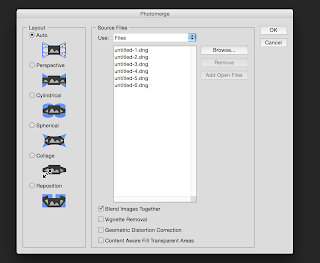
  2. Choose your pictures for the panorama

    I went with the layout 'Auto' and then clicked on Ok. 

    Photoshop will now blend the images. The result is a panorama. In the layer panel you can see the images with a layer mask. You can now edit your picture. If you just want to flatten the images use CMD/Ctrl Shift E.)

Another way is to start in Lightroom: 
  1. Import all the images for your panorama into Lightroom

  2. Select all your images and right click and choose Edit in > Merge to Panorama in Photoshop  or in the menu Photo > Edit in .....

  3. So now you'll get the import dialogue in Photoshop. Choose Auto and click OK
Again we have an image with layers in Photoshop. You can edit in Photoshop now. I've cropped the picture in Photoshop.
 
I've flattened the image (Layer > Flatten image) and filled the transparant parts in the picture with the Content Aware Fill.

You can do this by selecting the transparant part with the Magic Wand Tool and choose Edit > Fill, choose content aware and check if the Content Awere Fill did its job.

Don't forget to save the image. The great thing with this method is that the panorama will be reimported into Lightroom. 

Now you get to select the image in Lightroom and do some more postprocessing if you like. 


Don't forget to follow us on Facebook or 500px. 

And have you already discovered our brand new Facebook page Humans of the Nordic Region?


Sunday, November 22, 2015

Blending modes in Photoshop

Today I'm going to talk about blending. Blending modes in Photoshop. When you're working with layers, you often need to change your blending mode to get the effect you're after. 

But let's start at the beginning. What is a blending mode? 
Layer blend modes offer different ways for a layer to interact/blend with the layer below it. Blending layers give you a lot of creative possibilities, especially when combined with layer masks.

Here's an example: 
I took a picture where I want to sharpen it with a high pass filter. First step is to open the picture and to duplicate the background. After adding the filter, this is what you'll get: 

Now this is not the effect I was after. And you know why? Because the blending mode is 'normal'. By changing this to Overlay I get the effect I was after. In this case a sharper image.  

Because I'm working on a separate layer, I can decrease the effect by reducing the Opacity of the layer. If I don't want the effect everywhere, it's easiest to use a mask to hide some part of it.

But how do you know what blending mode to use? Excellent question, because there's just sooo much to choose from in Photoshop: 

As you can see, the blending modes are all grouped. Each group has its own function. 

So that actually makes life a lot easier. Let me show you with an image I'd like to darken: 

Step 1: Duplicate the background 
Step 2: Switch the blending mode to a blending mode that darkens your image. In this case I went with Multiply.
 

You can see this gives a much darker image. As said you can reduce the opacity to reduce the effect or/and use a mask to select a specific area of the photo where you want the effect.  

So how does it work if you want to lighten part of your image: 

Step 1: Copy the background layer and put it on top of the layers.
Step 2: Change the blending mode to soft light. By adding mask and reducing the opacity I created another effect. 

The best way to learn your blending modes is to just practise over and over again.  If you want to know all the details of each blending mode just click here. 

Don't forget to follow us on Facebook or 500px. 

And have you already discovered our brand new Facebook page Humans of the Nordic Region?


Photo is from Pixabay.com