Showing posts with label collage. Show all posts

Thursday, August 18, 2016

How to create a Photo Collage Template in Photoshop

I discovered this great tutorial made by Helen Bradley on how to make a colllage in Photoshop and how to save it as a template.

Believe me, it's an easy project and very well explained.


This clip shows you things like working with groups and some blending options.

Before you watch and try it yourself, find a background image and an image you want to transform into a collage. We started with this: 


And here's the result: 

Check out this video if you want to find out more.


Don't forget to follow us on Facebook or 500px. 

And have you already discovered our Facebook page Humans of the Nordic Region?
    pictures from pixabay.com

Tuesday, July 12, 2016

How to create a collage in Photoshop

Sometimes it can be nice to presen your work in a different way. Like for example as a (poster) collage. 

And you know what, it's actually quite easy to do. Check out this video to find out what steps to take. 

Or make something like this collage from just one image. Tons of possibilities to be creative! 

Don't forget to follow us on Facebook or 500px. 


And have you already discovered our Facebook page Humans of the Nordic Region?

Thursday, February 4, 2016

How to create a collage in Photoshop

Creating a collage photo effect in Photoshop is a great way to learn the rectangle tool in Photoshop. 

Here's how it works:
  1. Open a picture
  2. Add a Solid Color Layer adjustment and choose white for the colour
  3. Choose the retangle tool and fill it with black
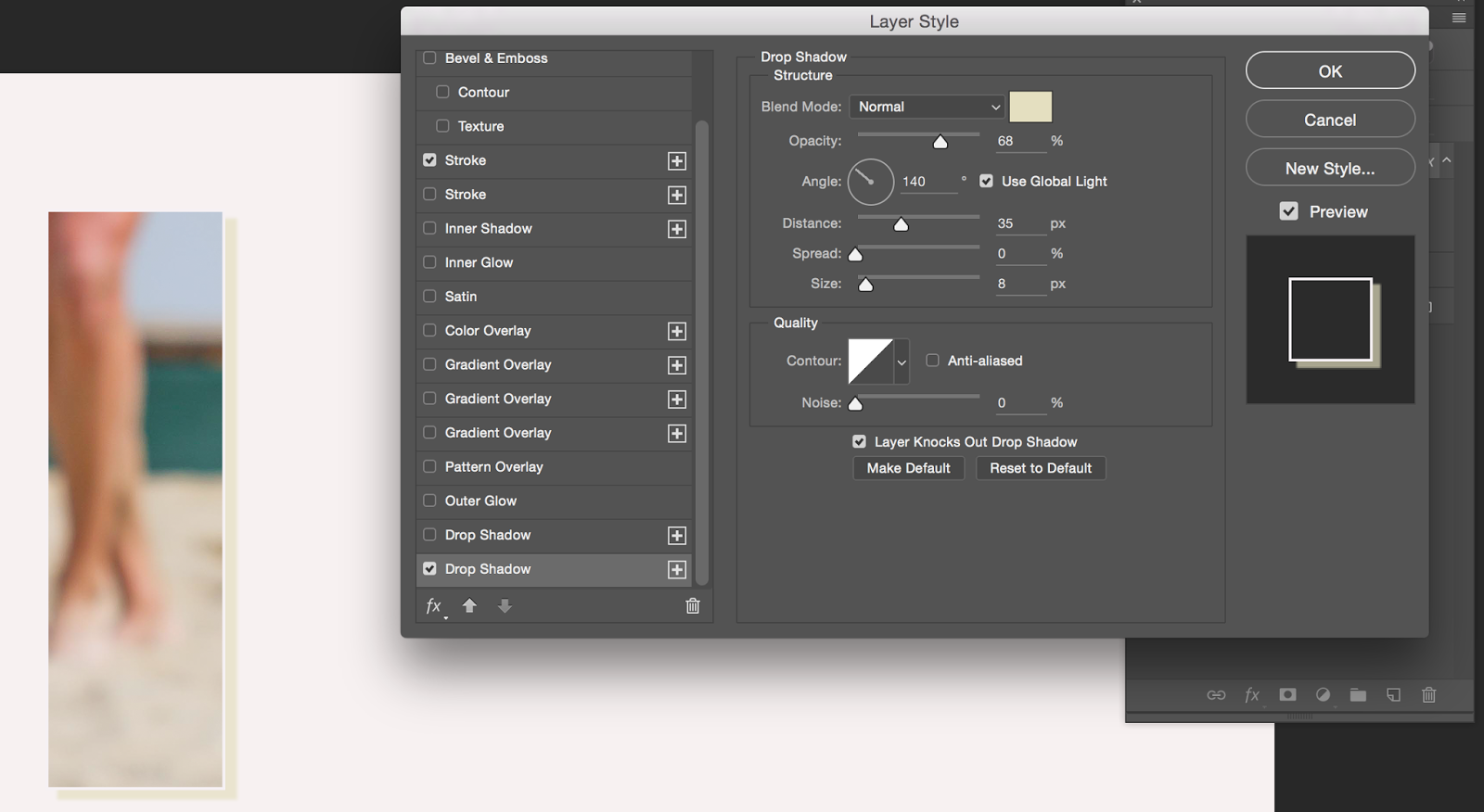
  4. With the rectangle selected, go to blended options (fx), Set fill opacity to 0% and knockout on shallow
     

  5. Add a stroke and drop shadow

  6. Duplicate the rectangle layer 4 times (CMD J) 
  7. Move the layers in position with the move tool
  8. Select all the layers and hit Cmd T (free transform) Enlarge your image
  9. Select the Solid colour layer and hit Fx > gradient  Overlay
    Choose radial and pick two colours (this colour is the background colour of your image)

  10. Add a new empty layer and paint with white on the top of the picture and set the blending mode to Soft light
    If the effect is too strong lower the opacity of the layer.
Voila! This is the end result of thie image I worked with: 

Have fun experimenting and see you in the next blog!

Don't forget to follow us on Facebook or 500px. 


And have you already discovered our brand new Facebook page Humans of the Nordic Region?